Keep the practical explanation
Pair the demonstrated process with the matching transcript or a reviewed AI summary.
 Video2Script
PROFESSIONAL LEARNING · FOR MAC
A training recording is useful only if you can find the explanation again when you need it. Build a reference document from a workshop or professional development session, with slide screenshots and the details you want to keep.
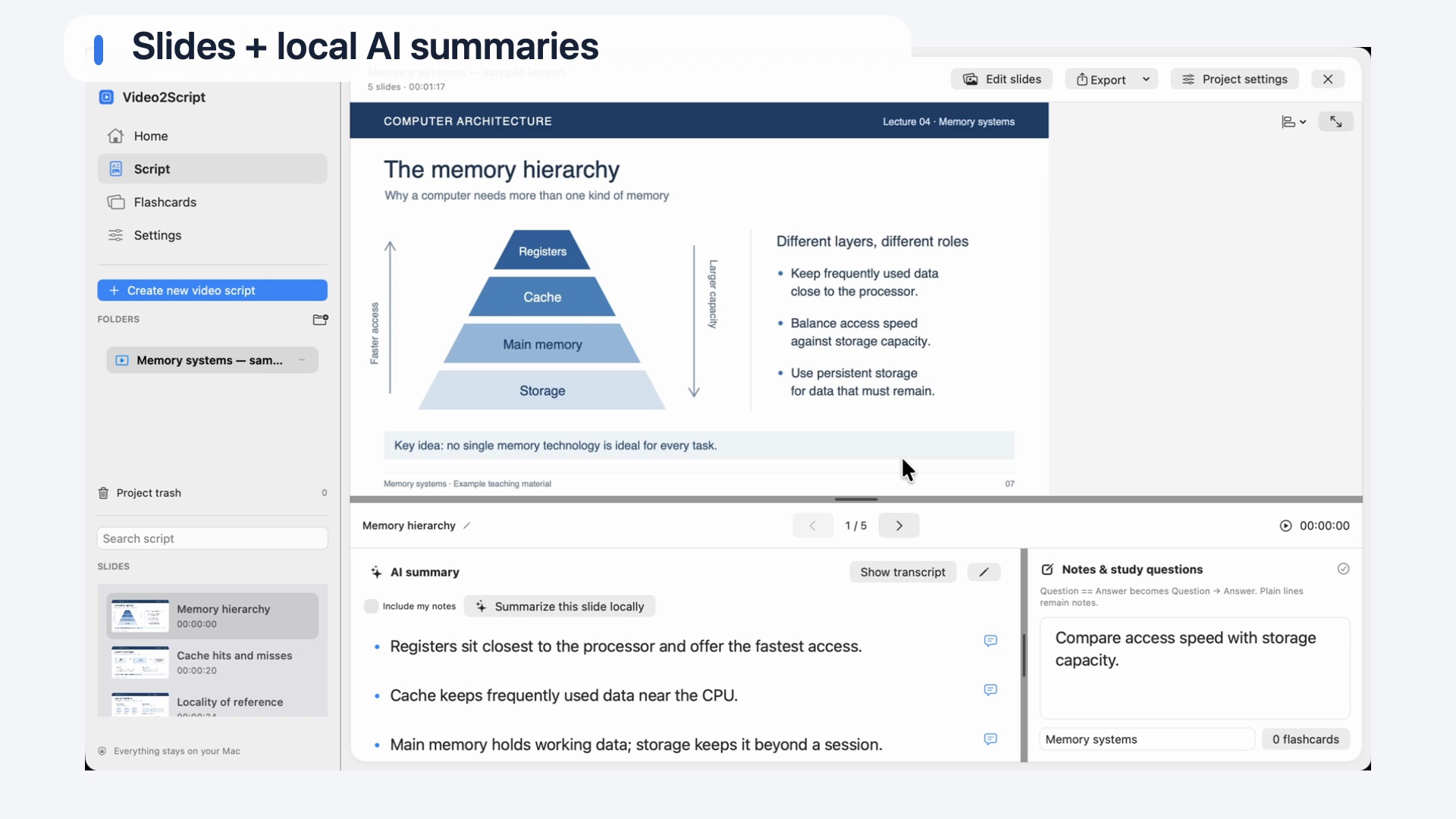
Keep screenshots, explanations and personal notes connected.
Pair the demonstrated process with the matching transcript or a reviewed AI summary.
Write down how the material applies to your role, and keep open questions next to the relevant slide.
Export a PDF for reading or a Word document to continue writing in Word or Pages.
FROM RECORDING TO STUDY GUIDE
Choose an existing video file you are allowed to use.
Detect slide changes or capture useful moments manually in Live mode.
Review transcripts and summaries, then add your own context.
Keep the script in the app or export PDF or Word.
Use the recording as a source, not as a finished handbook. Check names, figures and process steps before relying on generated notes in your work. Add the examples that matter to your own situation.
Transcription and summarization run locally on your Mac with downloaded models. Only import or share training material you are permitted to use, including any confidential workplace information.
A FEW THINGS TO KNOW
Yes, if you are permitted to use them. Processing runs locally with downloaded models. Follow the confidentiality and sharing rules that apply to the material.
No. Video2Script processes an existing video recording; it does not join or record live meetings.
Start with the free demo, then unlock every slide with a one-time purchase.
| Feature | Free demo0 USDFree | Full version99 USDOne-time purchase |
|---|---|---|
| Video analysis | Entire video | Entire video |
| Slides per video | Any five slides you choose | All slides |
| Notes, AI summaries & flashcards | For your selected slides | For all slides |
| PDF, Word & HTML export | Your selected slides | All slides |
| License | No key required | Two personal Macs |
| Time limit | No expiry | Keep using the purchased major version |
| Anki export with screenshots | Not included | Included |
| PDF watermark | Demo watermark | No demo watermark |
Planned full-version price: 99 USD. Public downloads and purchasing will follow. Later paid major versions are sold separately.
KEEP EXPLORING
Explore PDF, Word and the text options for your document.
Video to PDFPublic downloads and release details will follow on the homepage.
See availability →