The spoken explanation
Whisper creates a local transcript of the audio. Open it when a definition, qualification or example needs a closer look.
 Video2Script
VIDEO TO SCRIPT · FOR MAC
A lecture recording is easy to save and hard to scan. Video2Script turns the spoken explanation and the slides into an illustrated study script, so you can revisit a topic without replaying the whole seminar.
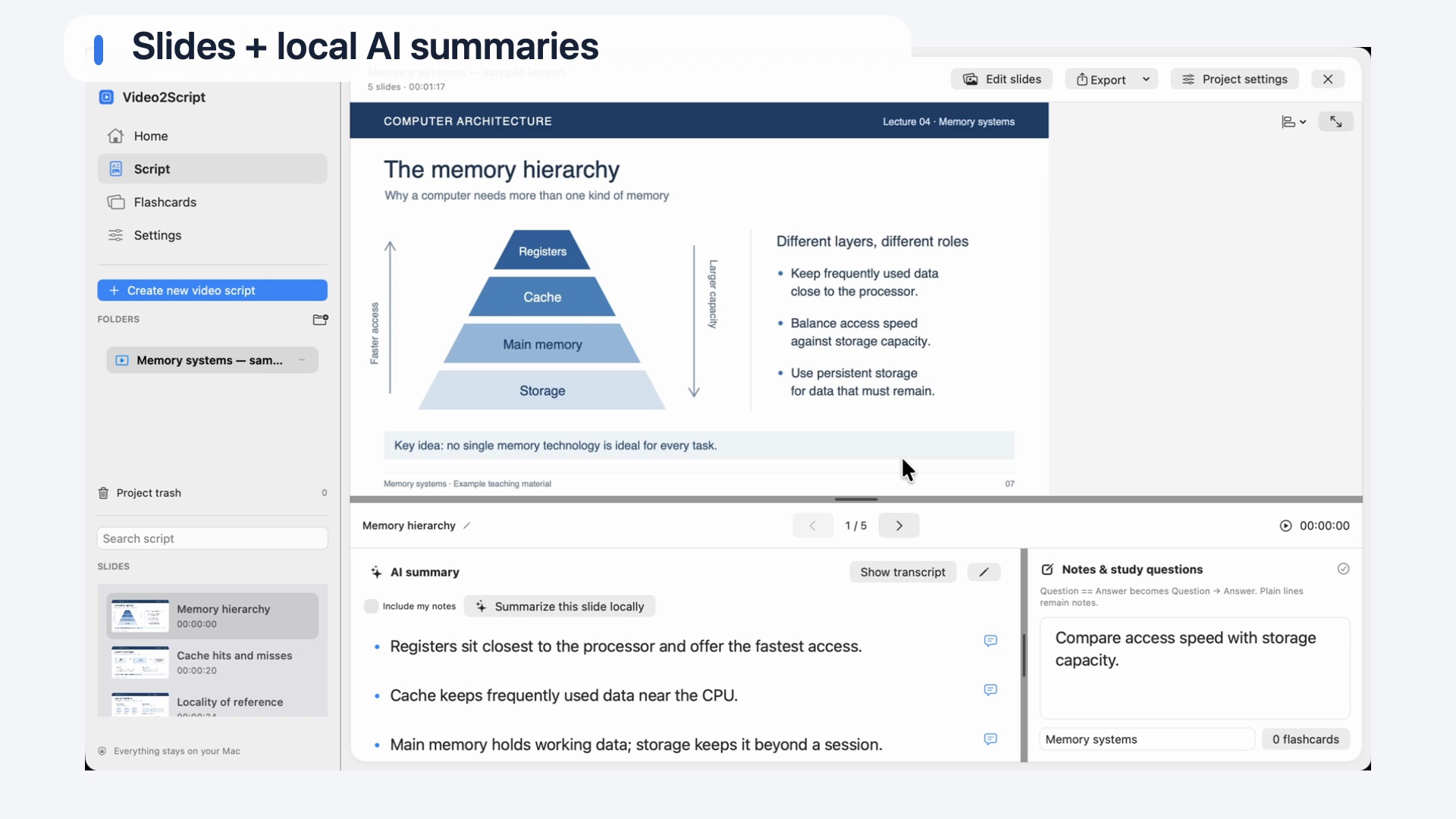
A study script brings together what was shown, what was said and what you understood. Start with the recording, then shape the result into your own course notes.
Whisper creates a local transcript of the audio. Open it when a definition, qualification or example needs a closer look.
Slide screenshots divide the recording into useful sections. Revisit the matching moment in the video when the written explanation is not enough.
Use local AI summaries as a starting point. Edit the bullet points, highlight key ideas and add your own notes and questions.
FROM RECORDING TO STUDY GUIDE
Choose a local video file from a lecture, seminar or course. Use Automatic mode for a first pass, or Live mode to watch the recording and capture each important moment yourself.
Automatic mode detects slide changes while Whisper transcribes the audio. Check the result: add a missed slide, replace a screenshot or adjust section boundaries where needed.
Generate a local AI summary for a section or the whole script. Review it against the transcript and video, then add the connections and examples that matter to you.
Keep the script in your local library, turn questions and answers into flashcards, or export an editable Word document. You can open the .docx file in Word or Pages.
Searching for “video to script” can mean different things. Here, a script means study notes created from an existing recording: screenshots, explanations and personal annotations. Video2Script is designed for reviewing recorded teaching, rather than writing a screenplay or a script for a video you have not filmed yet.
For online and distance learning, that distinction matters. A lecturer may spend several minutes explaining a diagram while the slide stays unchanged. The transcript preserves the spoken detail; a summary helps you find the main idea; your notes record what you still need to work through.
Transcription and summarization run locally on your Mac using downloaded models. You need an internet connection to download models or import online videos. Once the models and recording are available locally, you can transcribe and summarize offline.
A FEW THINGS TO KNOW
Yes. Video2Script combines a local transcript with slide screenshots and optional AI summaries. You can edit the result and add your own notes, rather than relying only on a long block of transcribed speech.
The transcript aims to capture the spoken words. AI summaries condense them into study notes. Both can contain errors, so check important details against the original recording.
Live mode lets you capture useful moments manually. It can help with tutorials and screen demonstrations where automatic slide changes are less useful.
Yes. Choose summaries, transcripts or both when exporting. PDF is useful for reading and sharing; .docx is the option for further editing in Word or Pages.
KEEP EXPLORING
See how to choose the content for an illustrated PDF study guide.
Video to PDFPublic downloads and release details will follow on the homepage.
See availability →