Slides and explanation together
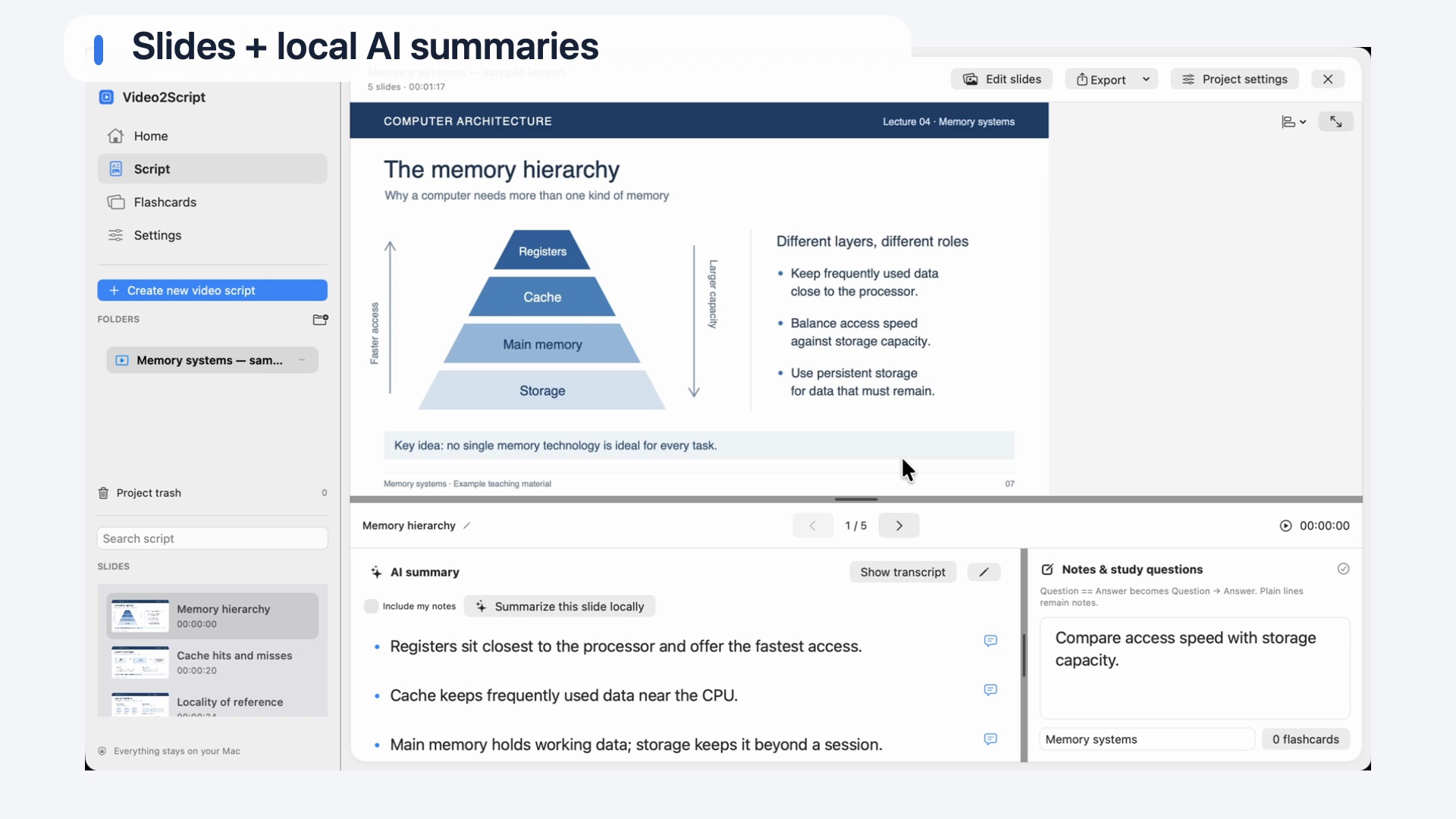
Capture presentation changes and keep the relevant transcript alongside each screenshot. Return to the video when a diagram or example needs another look.
 Video2Script
WEBINAR RECORDINGS · FOR MAC
A useful webinar should not disappear into a folder of recordings. Bring the replay into Video2Script and build illustrated notes with the slides, spoken explanation and your own takeaways. Export a PDF when you are ready to read or share it.
Whether you are working through a course, a professional development session or a technical workshop, your notes stay connected to the source recording.
Capture presentation changes and keep the relevant transcript alongside each screenshot. Return to the video when a diagram or example needs another look.
A local text model can condense the explanation into bullet points. Check the result, highlight what matters and add comments or your own notes.
Export a PDF for reading or a .docx file for further editing in Word or Pages. Choose summaries, transcripts or both in the export options.
FROM RECORDING TO STUDY GUIDE
Choose a local webinar video you are allowed to use. Video2Script processes a recording after the event; it does not join webinars or record live calls.
Use Automatic mode to detect slide changes. For software demonstrations or less structured recordings, use Live mode to watch the replay and capture important moments yourself.
Whisper transcribes the audio locally. Generate summaries, review specialist terms against the recording and add practical examples or questions you want to revisit.
Save an illustrated PDF, continue editing a Word document or work from your local library. Write questions and answers to create flashcards linked to the slide and video context.
A transcript preserves the spoken explanation, but a long block of text can be difficult to work through. Slide-linked notes give that explanation a visible structure. A screenshot of a process diagram and your own explanation beneath it can be more useful to revisit than a timestamp alone.
Use the summary for the main points and open the transcript when you need the detail. In a technical webinar, check terminology, numbers and any steps that matter before relying on an AI-generated explanation. Add a missed screenshot or adjust section boundaries if a topic was split in the wrong place.
Transcription and summaries run locally on your Mac with downloaded models. Once the models and recording are available, these steps can run offline. Only import and share recordings you have permission to use.
A FEW THINGS TO KNOW
Yes. Import the recording, review its illustrated script and export it as a PDF. Choose AI summaries, transcripts or both. A Word (.docx) export is also available for further editing.
No. It works with an existing video recording. Download a recording where the provider permits it, then import the local file.
Live mode lets you capture useful moments manually while watching the imported video. This can work better than automatic slide detection when the screen changes continuously.
Yes. Whisper transcription and text-model summaries run locally on your Mac. Internet access is needed to download models and import online videos.
KEEP EXPLORING
Explore summaries, transcripts and editable exports before saving your study guide.
Video to PDFPublic downloads and release details will follow on the homepage.
See availability →