Automatic slide capture
Let the app detect changes in presentation slides and create a first draft. Review the result rather than treating detection as perfect.
 Video2Script
SLIDES FROM VIDEO · FOR MAC
Stop pausing a lecture to collect screenshots one by one. Video2Script can detect slide changes in an imported recording, then pair those screenshots with the spoken explanation and your own notes.
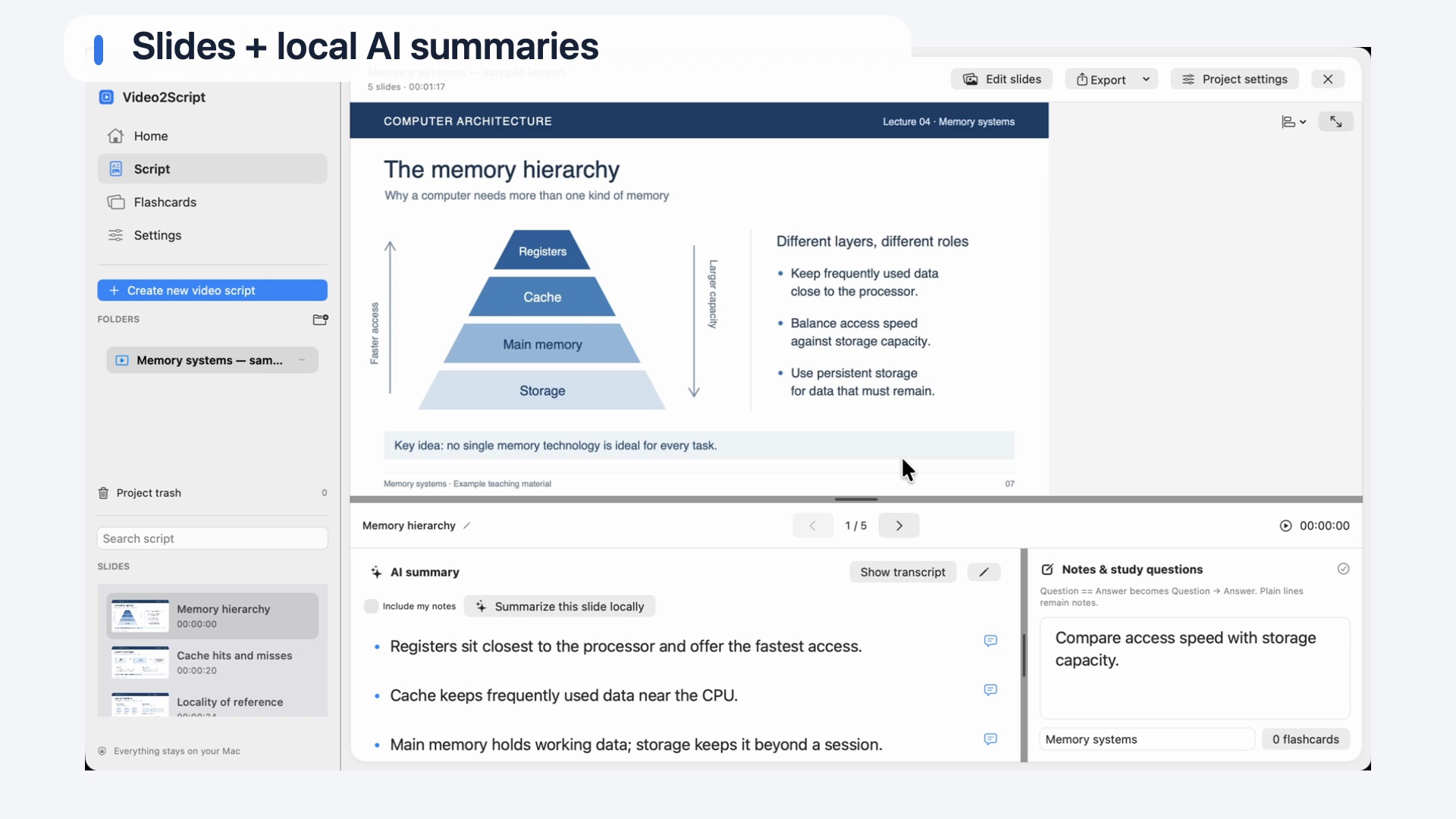
Create a visual outline from a lecture, webinar or course recording. Review the captured sections and keep the connection to the moment each slide was shown.
Let the app detect changes in presentation slides and create a first draft. Review the result rather than treating detection as perfect.
In Live mode, watch the imported recording and use “New slide” to capture a useful moment. This also helps with tutorials that have no distinct slide changes.
Add or delete slides, replace screenshots and adjust section boundaries. Your existing notes and flashcard links remain connected through the correction workflow.
FROM RECORDING TO STUDY GUIDE
Import a local lecture, webinar or training video you are allowed to use. Clear, readable slides provide a better starting point than a distant camera view of a projection.
Choose Automatic mode for detected slide changes or Live mode for hands-on capture while watching the recording. Whisper creates the transcript locally.
Revisit the video at any section. Add a missed slide, replace a blurry screenshot or move a boundary so the right explanation belongs to the right slide.
Add local AI summaries and personal notes. Keep the editable script in the app or export a PDF or Word document with the text you choose.
The screenshots are images of the slides shown in the recording. Video2Script does not recover the original PowerPoint file or turn slide images into editable presentation objects. Its purpose is to make those visuals useful as part of your study notes.
Automatic detection can miss a subtle change or create extra sections during animations. Check the outline against the recording and correct it in the app. Manual capture is useful when the presenter switches between slides, a browser and a software demonstration.
A slide often leaves out the example or reasoning that made it understandable. Pair its screenshot with a transcript or reviewed summary, then add your own questions. When studying later, you can return to the relevant video moment instead of searching the whole recording.
A FEW THINGS TO KNOW
You can capture slides from the recording and export the illustrated script as a PDF with summaries, transcripts or both. Review the captured slides before exporting.
No. The captured slides are screenshots from the video. Video2Script exports study scripts as PDF, .docx or HTML; it does not reconstruct the original presentation or export PPTX.
Yes. Open the video at the relevant point and add a slide with a new screenshot. You can also replace screenshots and adjust section boundaries.
Yes, when you have a supported recording or an available supported YouTube import you are allowed to use. Some online videos cannot be imported; a permitted local file is an alternative.
KEEP EXPLORING
Combine screenshots, explanations and your own understanding in an editable set of notes.
Video to ScriptPublic downloads and release details will follow on the homepage.
See availability →