Screenshots with context
Keep the visual reference alongside the explanation. A diagram or formula is easier to revisit when you can also read what the lecturer said about it.
 Video2Script
VIDEO TO PDF · FOR MAC
Take a recorded lecture beyond the video player. Create a PDF study guide with slide screenshots and the relevant explanation, so you can read through a seminar at your own pace.
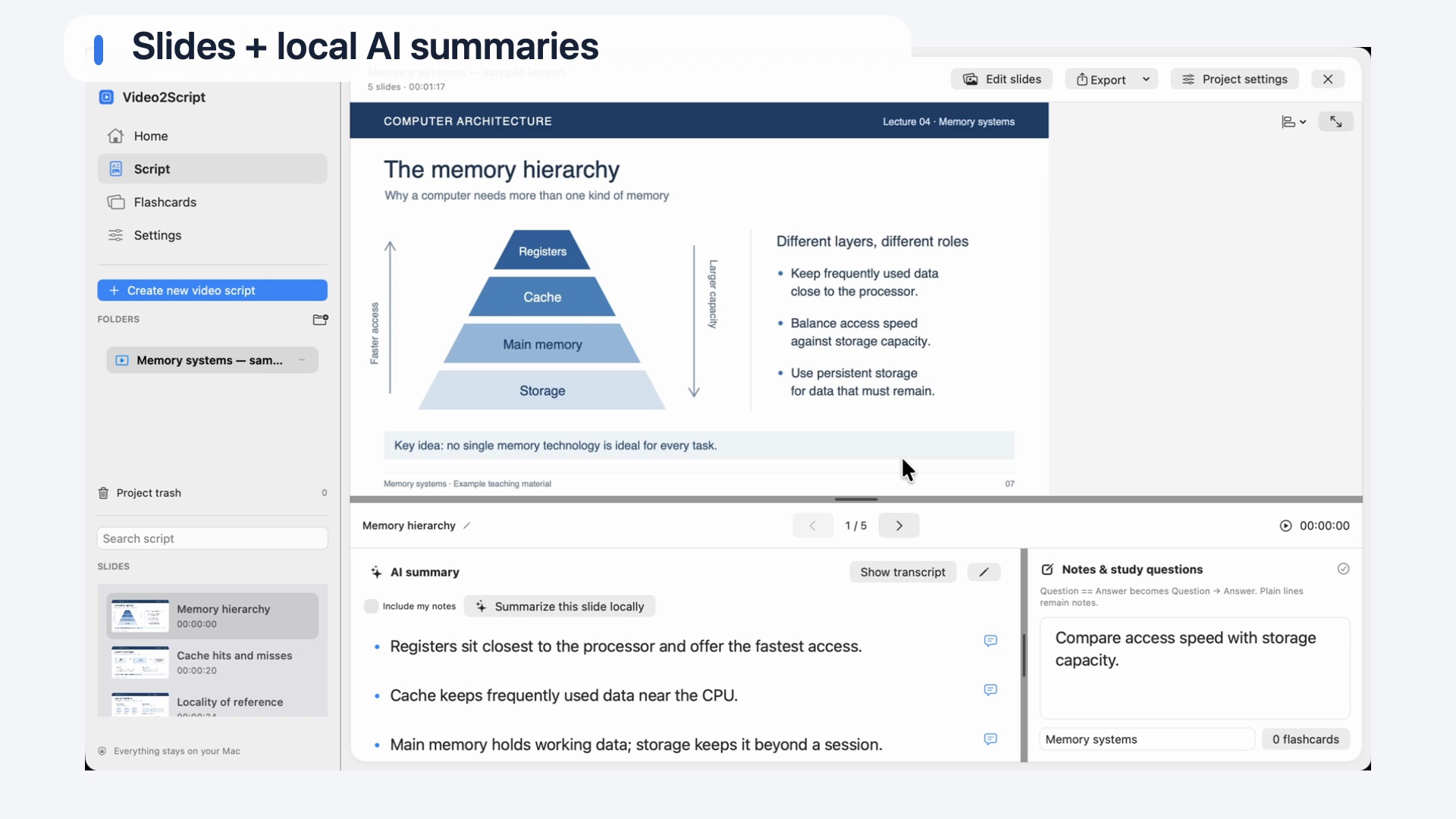
Video2Script first builds an editable study script from your recording. You review the sections, choose the text you need and export the result as a PDF.
Keep the visual reference alongside the explanation. A diagram or formula is easier to revisit when you can also read what the lecturer said about it.
Include the AI summary, the transcript or both. Use a concise summary for revision, or retain the transcript when the wording needs more context.
Correct a missed slide, rename sections and edit summaries in the app. Build the version you want to read before creating the PDF.
FROM RECORDING TO STUDY GUIDE
Import your local seminar, lecture or training recording. Select Automatic mode to detect slide changes, or Live mode to capture screenshots while you watch.
Check that the important slides are present and that each section starts in the right place. Return to the original video to fill gaps or replace a screenshot.
Create and review AI summaries, or use the transcript for a fuller record of the explanation. In the export options, choose summaries, transcripts or both.
Save the study guide as a PDF for reading or sharing. Keep the original script in Video2Script for later changes, or also export a .docx copy for editing in Word or Pages.
A video-to-PDF workflow is not simply a change of file format. A PDF cannot reproduce a lecture as moving images. The useful result is a document: selected screenshots paired with a written explanation, organized so you can find the topic again.
For an exam revision pass, summaries may give you enough detail. For an unfamiliar subject, the transcript can preserve examples and reasoning that a summary leaves out. Review the generated text before relying on it, particularly for technical definitions, formulas and names.
The PDF is a snapshot of your work. Your editable source stays in the local Video2Script library, where you can change notes, correct sections and revisit the video. If you want to continue writing in another app, use the Word export rather than treating the PDF as your editable master.
A FEW THINGS TO KNOW
No. It creates an illustrated study script using detected slide changes or screenshots you capture manually. That script can then be exported as a PDF.
Yes. The export options let you choose summaries, transcripts or both, so the document can be concise or more detailed.
For ongoing editing, keep the script in Video2Script or export a .docx file for Word or Pages. A PDF is better suited to reading and sharing the version you have prepared.
Transcription and AI summaries run locally on your Mac. Download the models first; with the recording available locally, those processing steps can run offline.
Yes, provided you have permission to use the recording. Clear speech and readable slides work particularly well. Use manual capture for demonstrations where slide detection does not provide useful sections.
KEEP EXPLORING
Explore the video-to-script workflow before choosing your export format.
Video to ScriptPublic downloads and release details will follow on the homepage.
See availability →